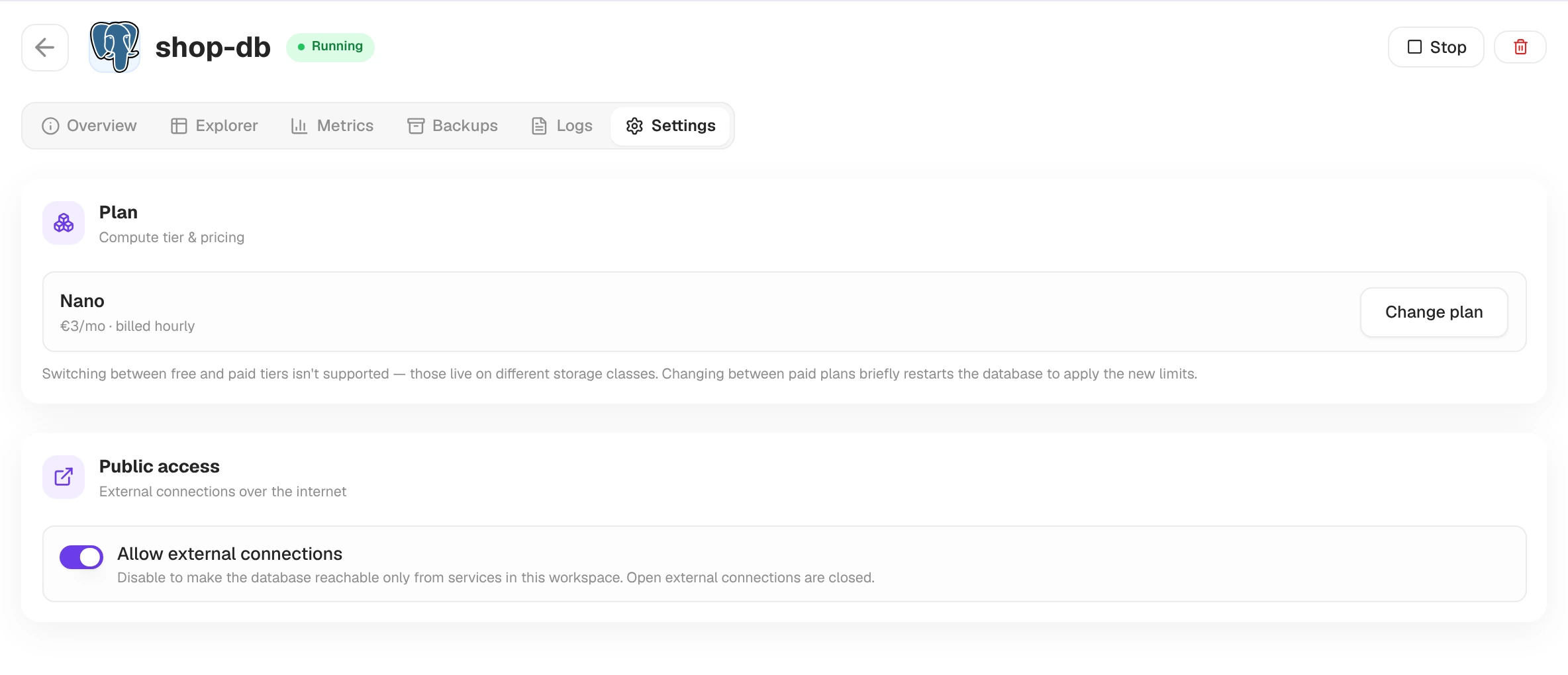
Managed PostgreSQL dashboard
Open Databases in the sidebar to see every PostgreSQL and Redis instance in your workspace. Filter by engine, then click a card to open the database.
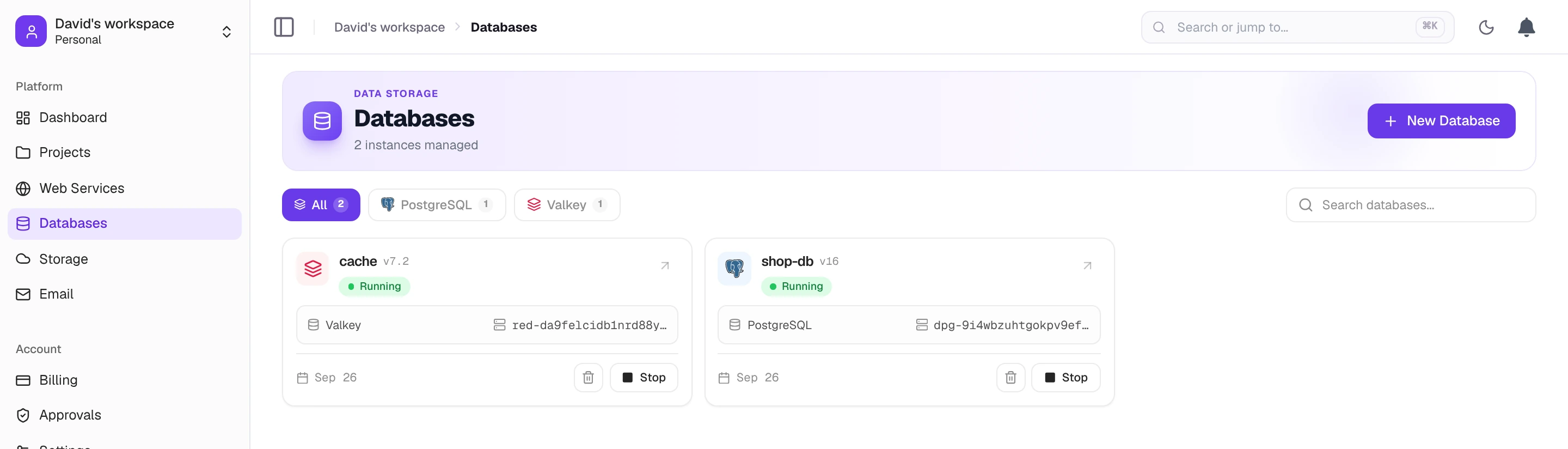
Each database has six tabs.
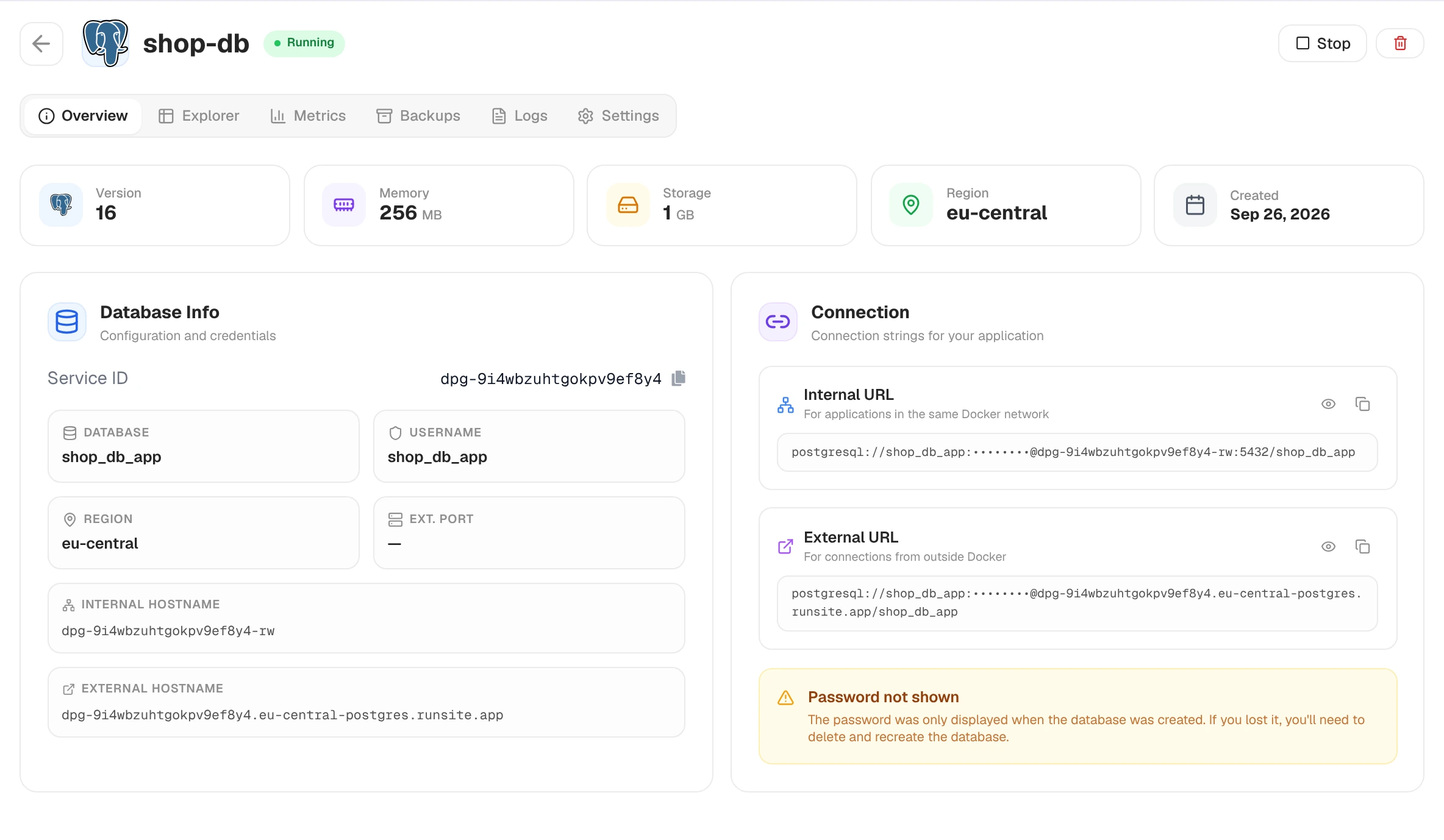
Overview and connection string
Section titled “Overview and connection string”The first tab you land on. It shows:
- Current status (Running / Stopped), with Stop and delete in the header.
- Version, memory, storage size, region and creation date.
- Database Info: the service ID, database name, username and both hostnames.
- Both connection URLs, Internal and External, with copy buttons. The password is masked; click the eye to reveal it.
Copy the internal URL for apps running on Runsite and the external one for psql or a GUI client on your laptop. Both are standard postgresql://user:password@host:port/database connection strings. More in Connecting.
Explorer: browse tables and run SQL
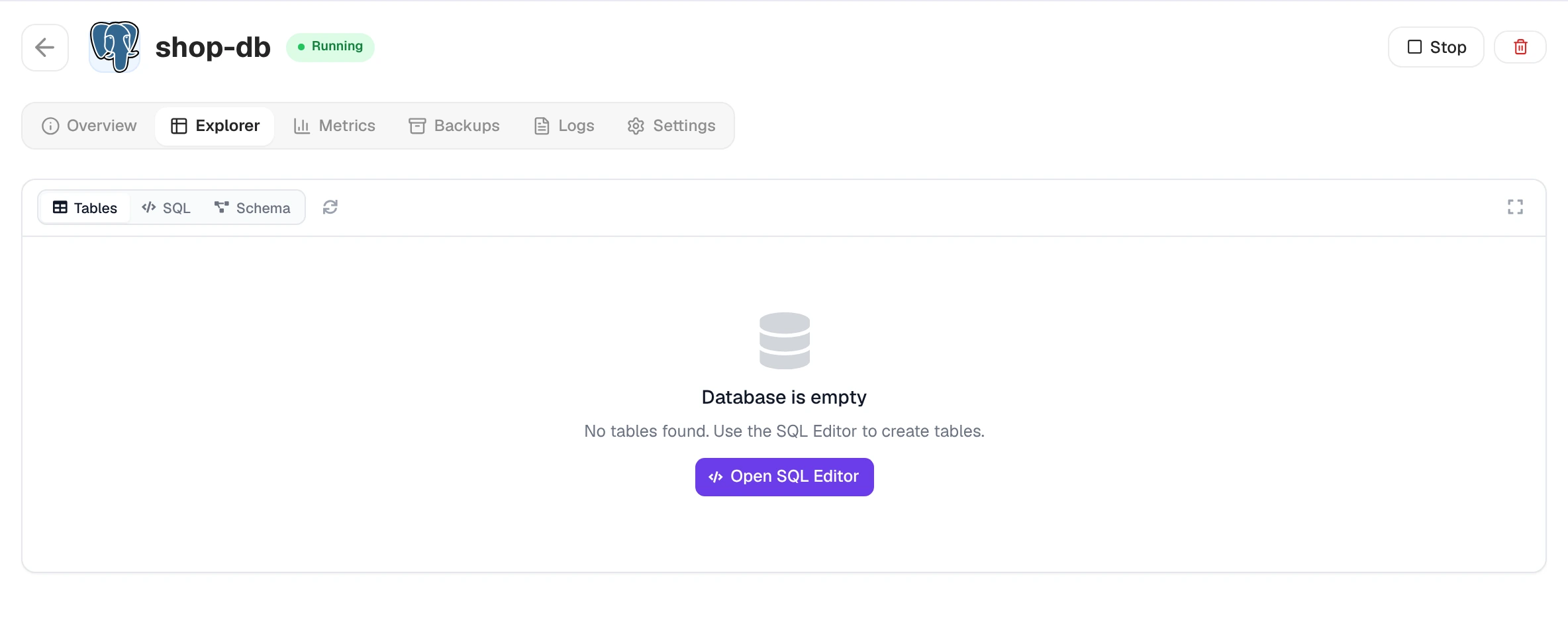
Section titled “Explorer: browse tables and run SQL”You can look inside the database without installing a client. Tables lists your tables and their rows, SQL opens an editor for running queries, and Schema shows columns and indexes. Good enough for a quick “did the migration land?” check.
Metrics
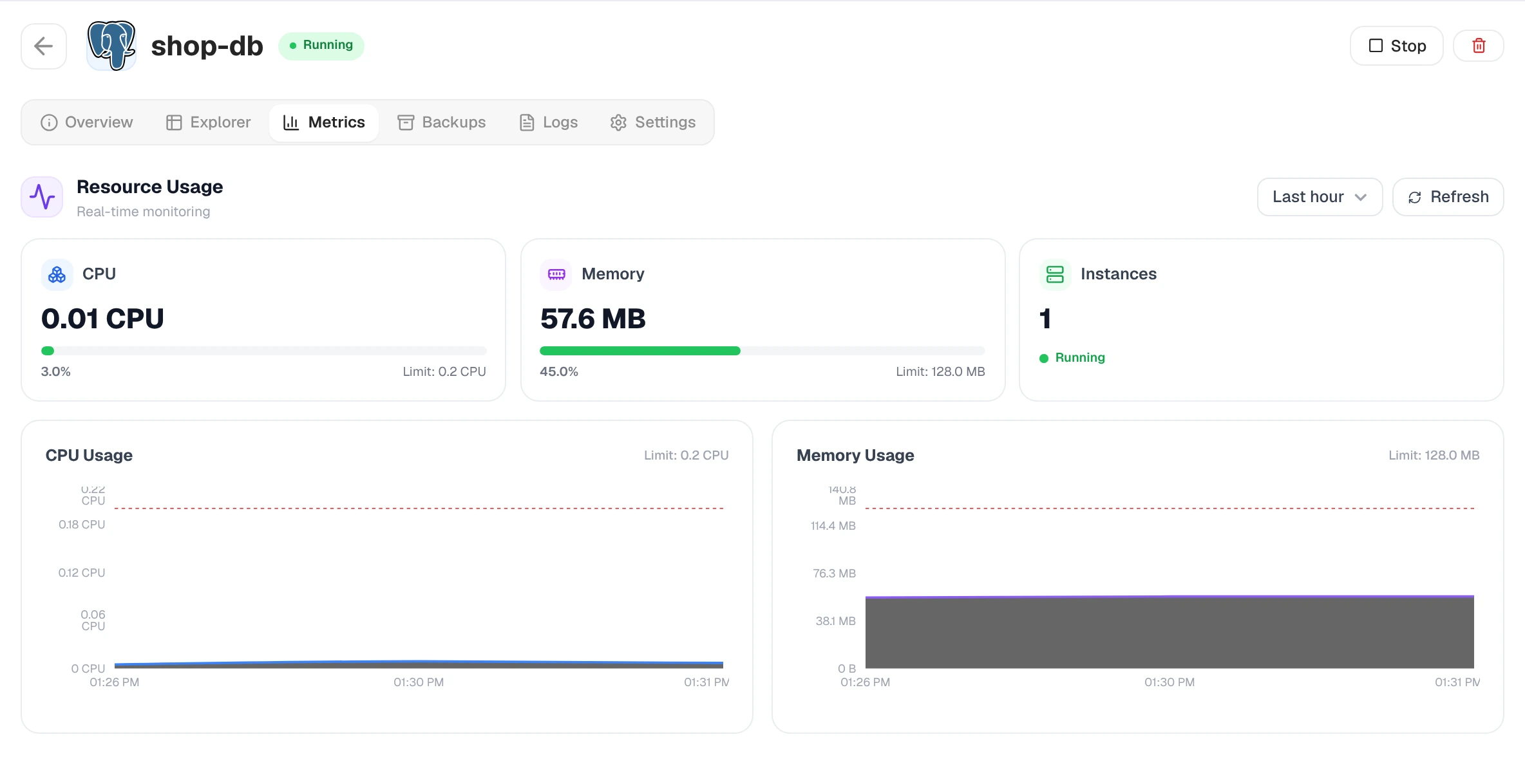
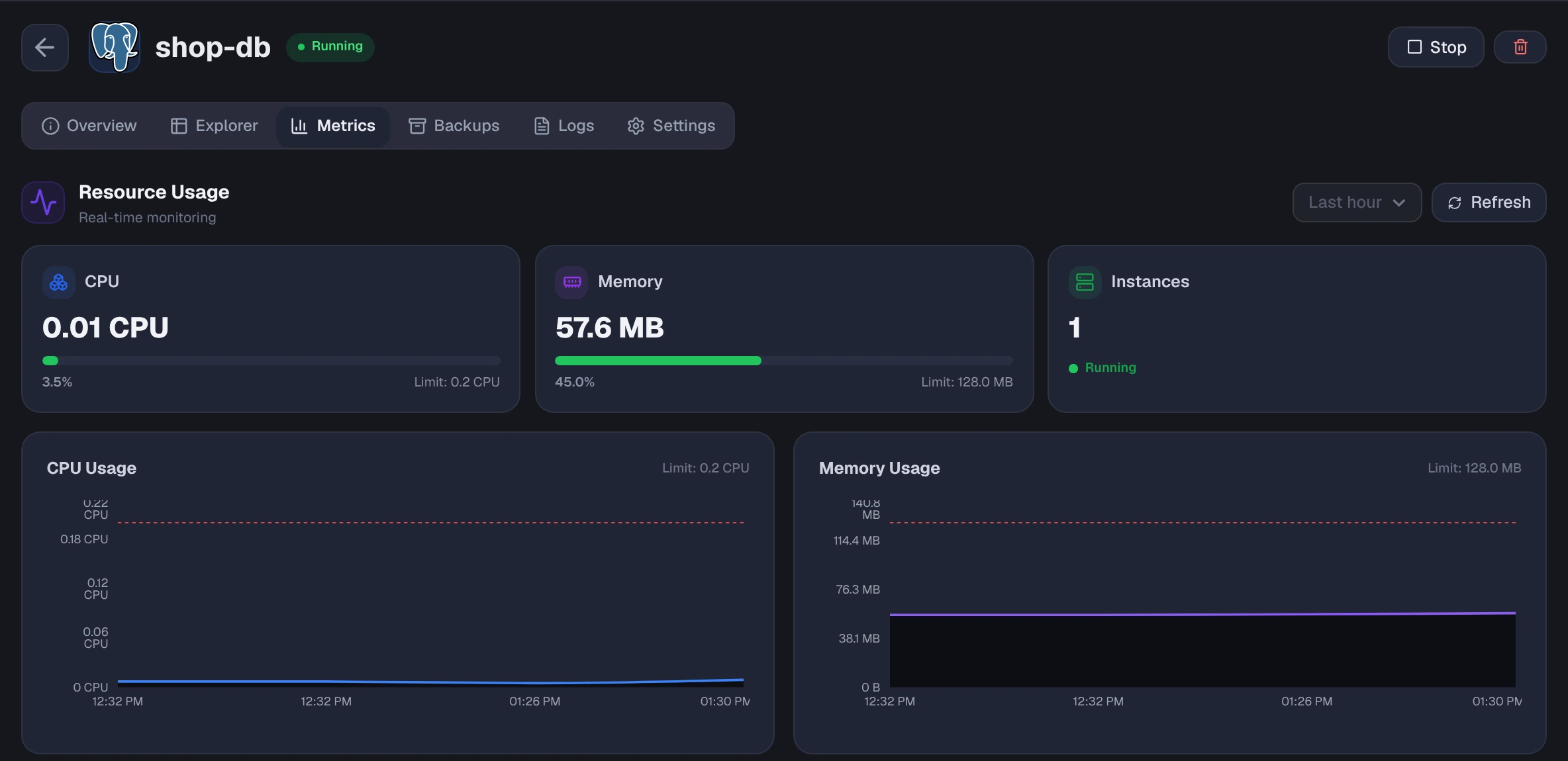
Section titled “Metrics”Live charts of CPU, memory and instance count, each against its limit. Pick a window: 10 minutes, 30 minutes, 1 hour or 2 hours. Charts auto-refresh while the database is running.
Backups and restore
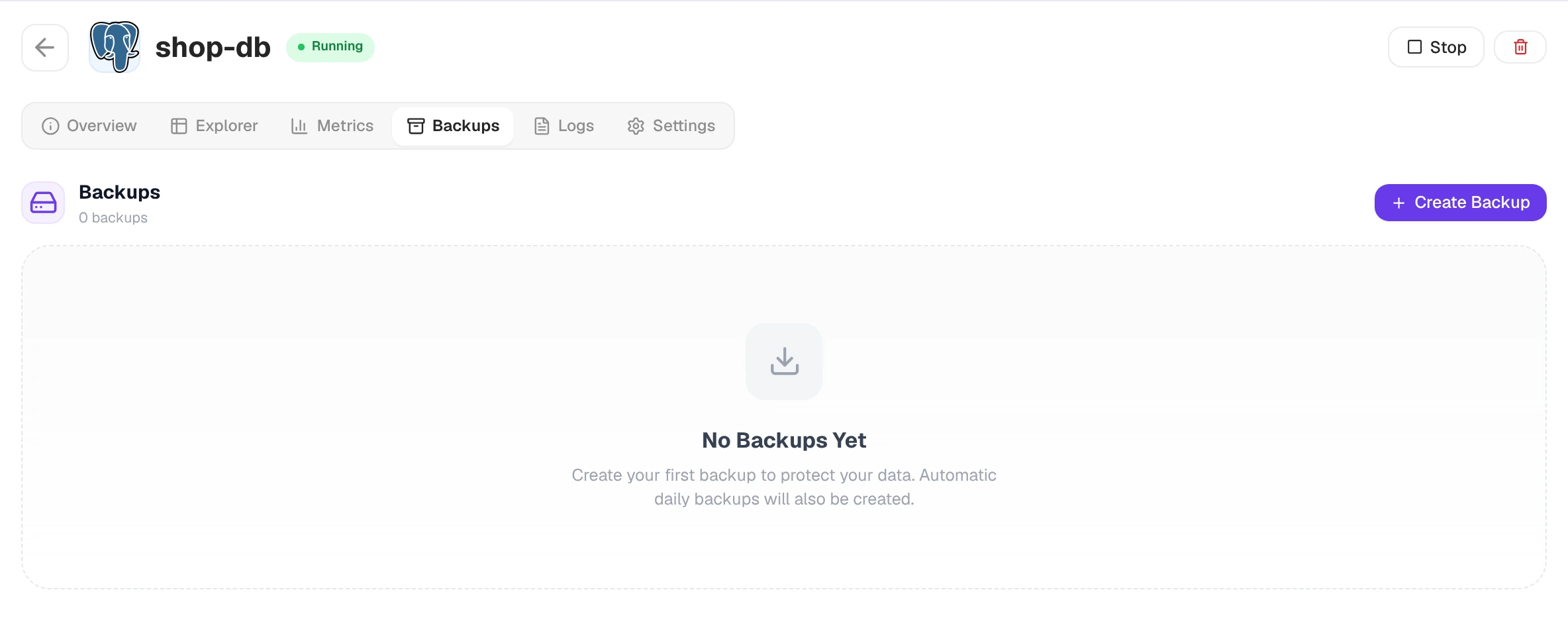
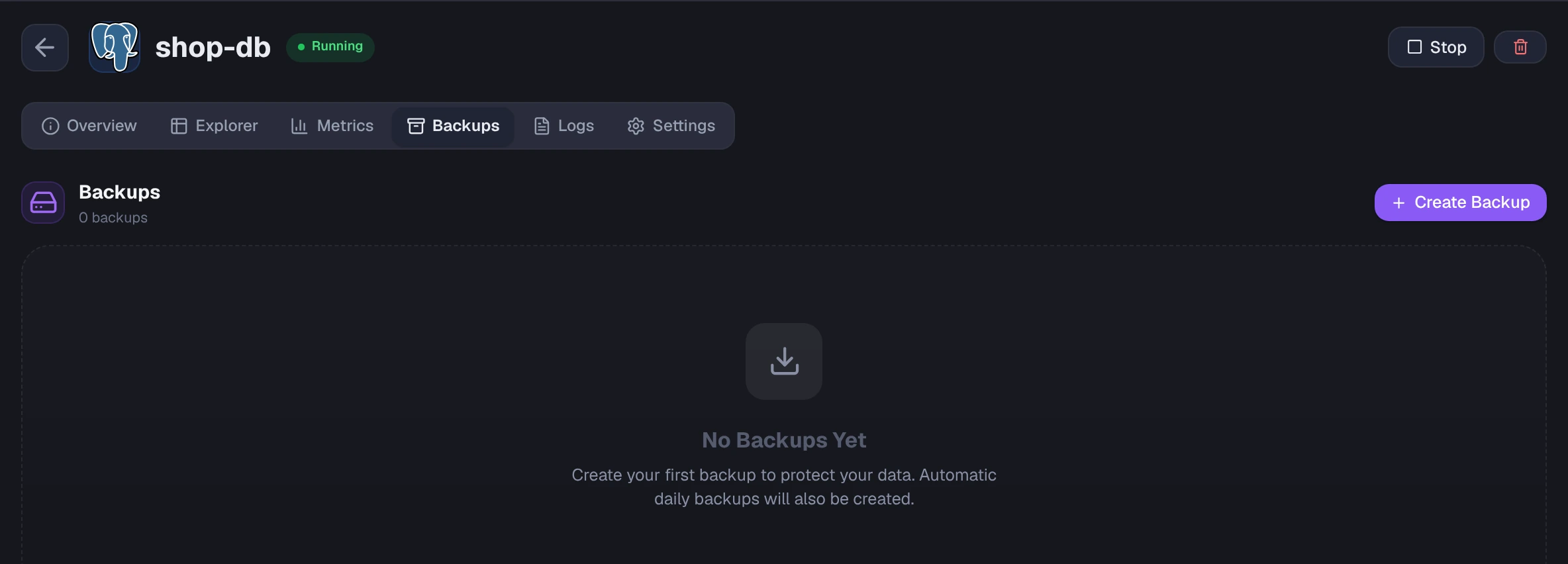
Section titled “Backups and restore”The full history of automatic and on-demand backups. Automatic backups run daily.
- See every backup with its size and timestamp.
- Click Create Backup to take a snapshot on demand.
- Click Restore on any completed backup to roll the database back to that point. The database must be running to restore.
See Backups for the schedule and full details.
PostgreSQL logs
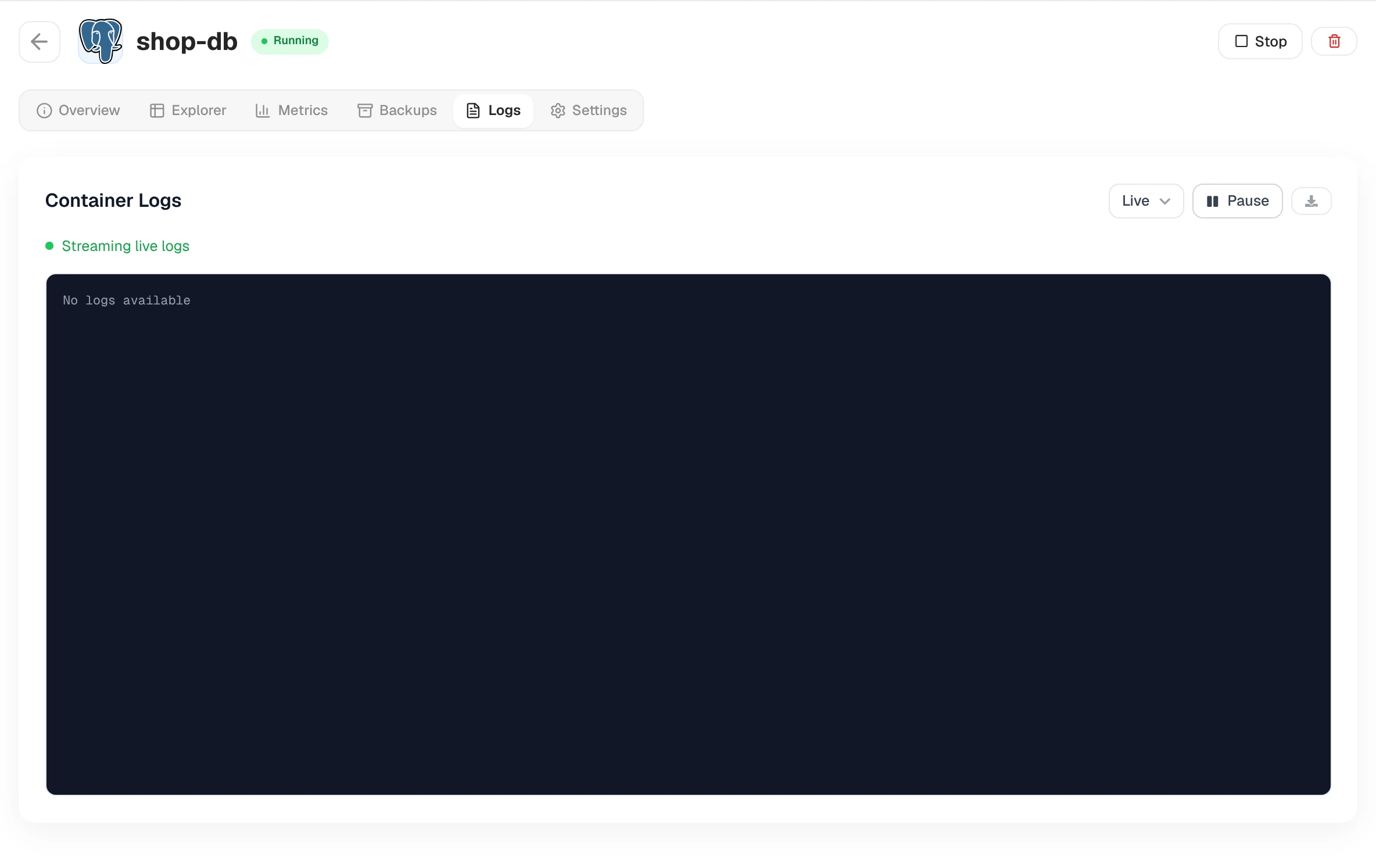
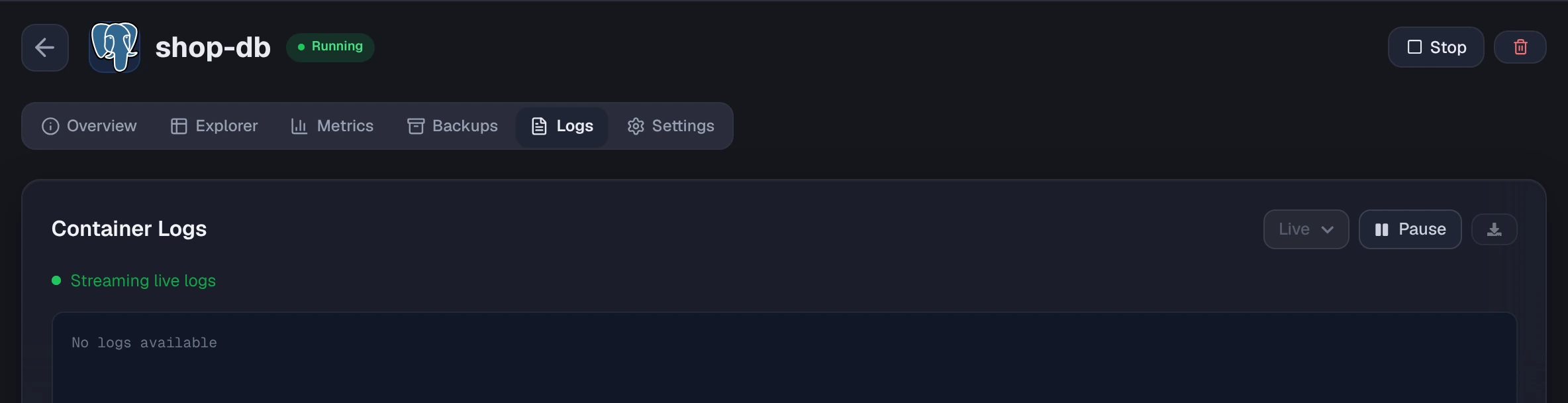
Section titled “PostgreSQL logs”Server logs from the database. Live streams new lines as they arrive, and Pause holds the stream still. You can also look back over the last hour, 4 hours or 24 hours, and Download the current view as a file.
This is the first place to look when a connection is refused or a password stops working.
Settings: plan and public access
Section titled “Settings: plan and public access”Plan shows the compute tier with Change plan. Changing between paid plans briefly restarts the database to apply the new limits; switching between free and paid tiers isn’t supported because they live on different storage classes.
Public access holds Allow external connections. Turn it off to make the database reachable only from services in the same workspace.