

Runsite terminal UI
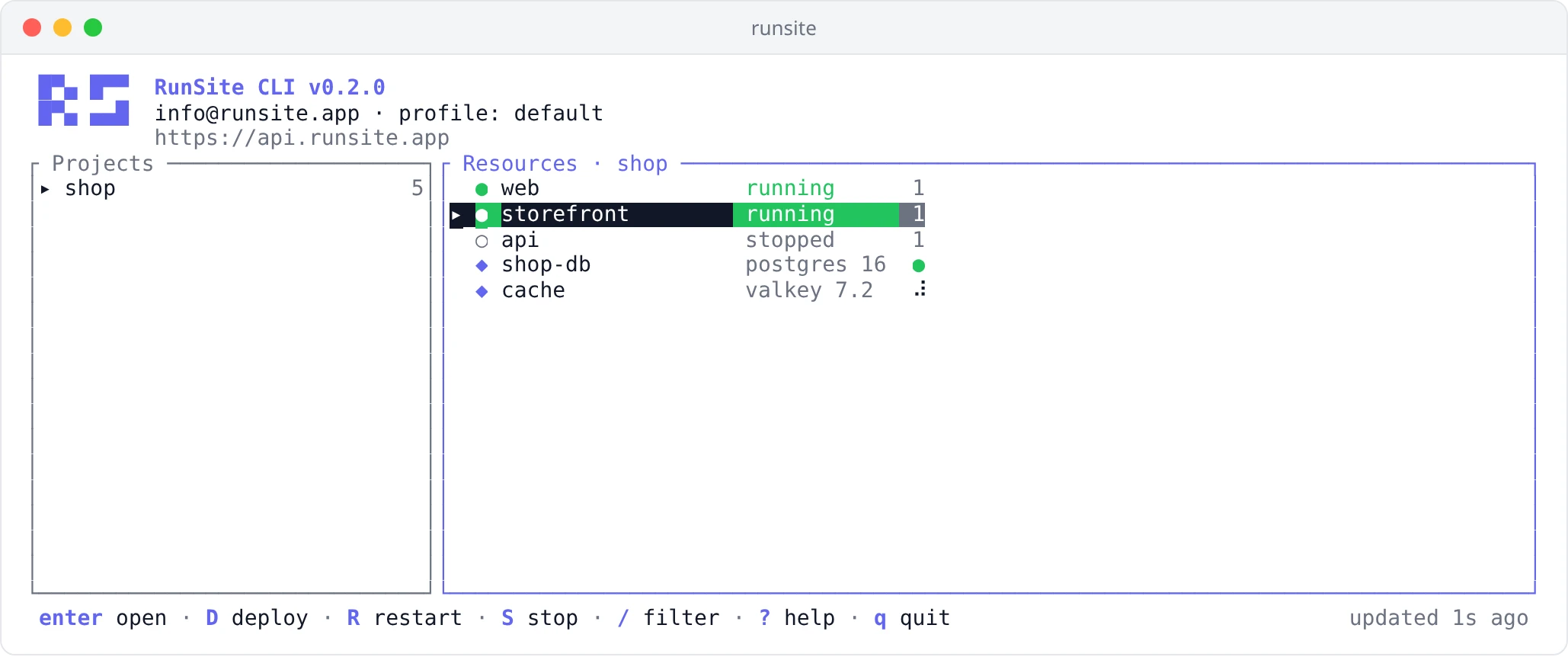
Run runsite with no arguments, or runsite ui, and the CLI opens a
full-screen dashboard in your terminal. It lists your projects, services and
databases, tails logs, shows every deployment with its build log, and can
deploy, restart, stop and roll back. It uses the same saved key and profiles as
the rest of the CLI, and if there is no key it asks you to log in first.
The UI opens only in an interactive terminal. In a pipe, a CI job or with
--output json, a bare runsite prints help instead, and every
command works exactly as before.
Moving around
Section titled “Moving around”| Key | Action |
|---|---|
↑ ↓, j k | Move the selection |
tab, ← →, h l | Switch between the Projects and Resources panes |
enter | Open the selected item |
1 2 3 | Open the selected service on Overview, Logs or Deploys |
esc | Go back |
/ | Filter the focused list |
r | Refresh now |
P | Switch profile |
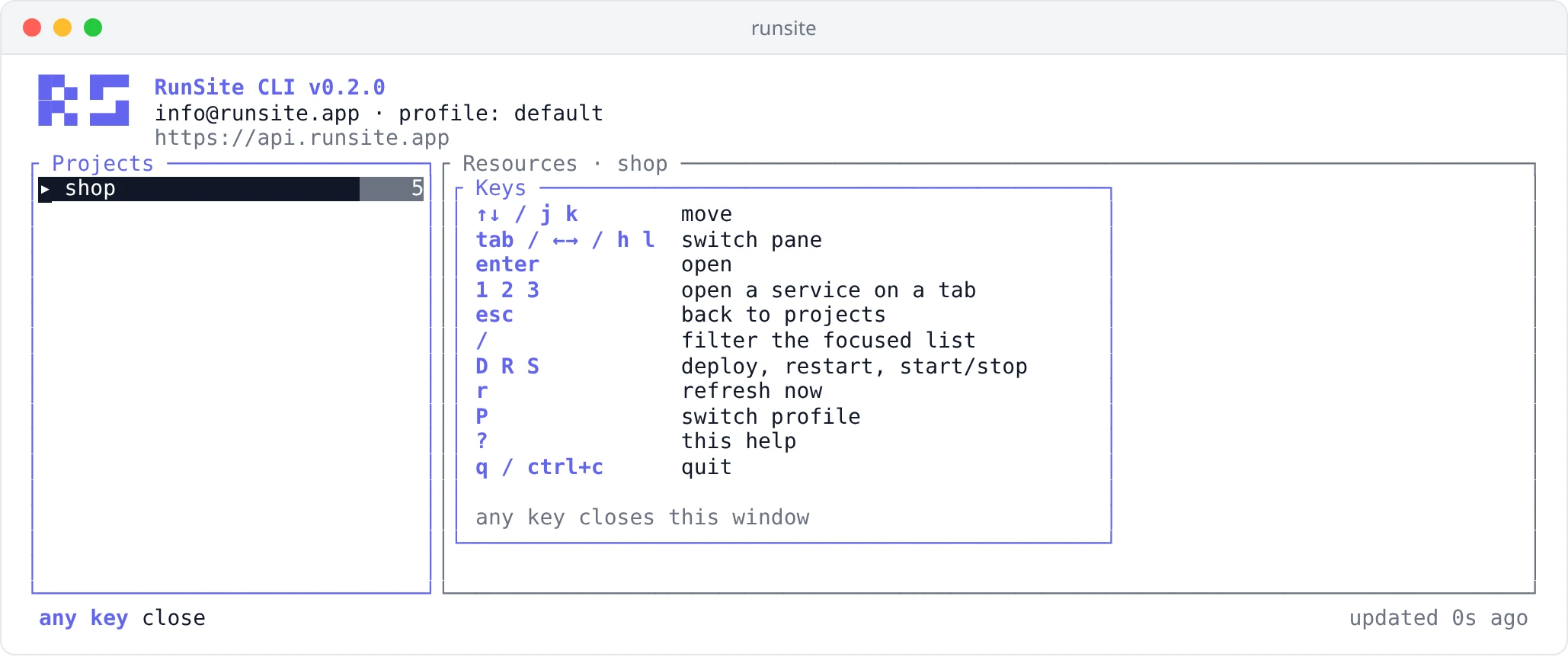
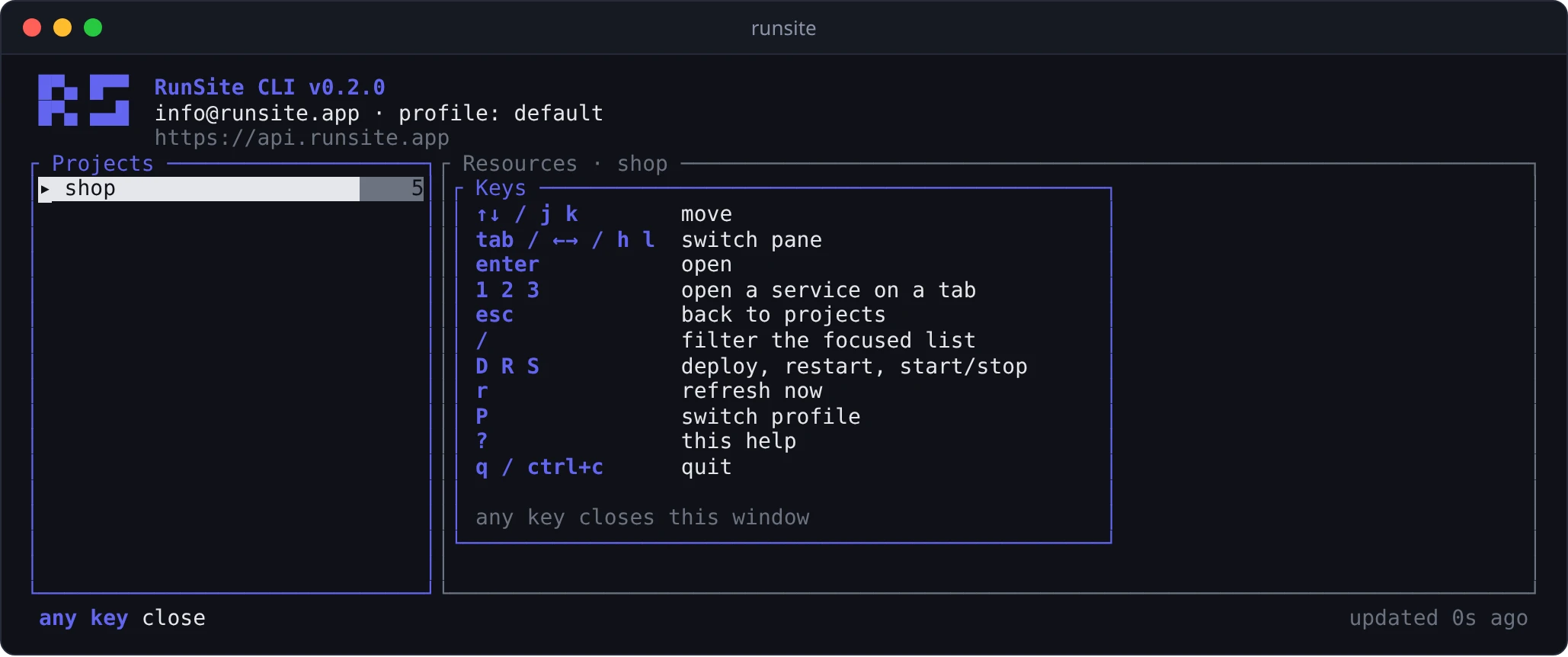
? | Show every key for the current screen |
q, ctrl+c | Quit |
The bottom line lists the keys that work on the current screen and how long ago the data was refreshed.
Dashboard
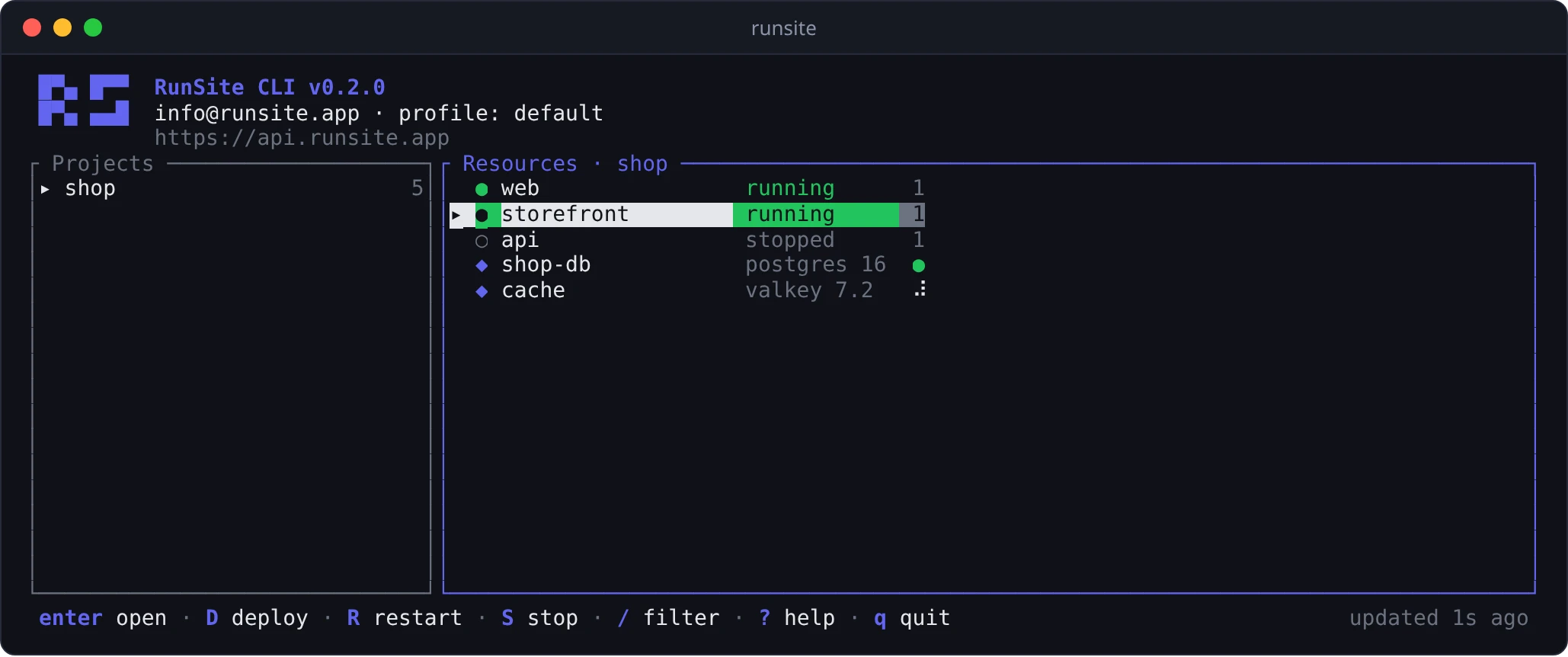
Section titled “Dashboard”The left pane lists your projects with the number of services and databases in each. An Unassigned row appears when some services have no project. The right pane shows the selected project: web services first, then PostgreSQL, then Redis, each with its status. A service row also shows its instance count; a database row shows the engine version.
Status icons:
| Icon | Meaning |
|---|---|
● green | Running |
○ | Stopped |
◐ | Sleeping |
| spinner | Deploying, starting, stopping or restarting |
✕ red | Failed |
⊘ red | Blocked or being deleted |
The UI remembers the project you last had selected and opens on it next time.
Service screen
Section titled “Service screen”Opening a service gives three tabs, switched with 1 to 3 or tab.
Overview
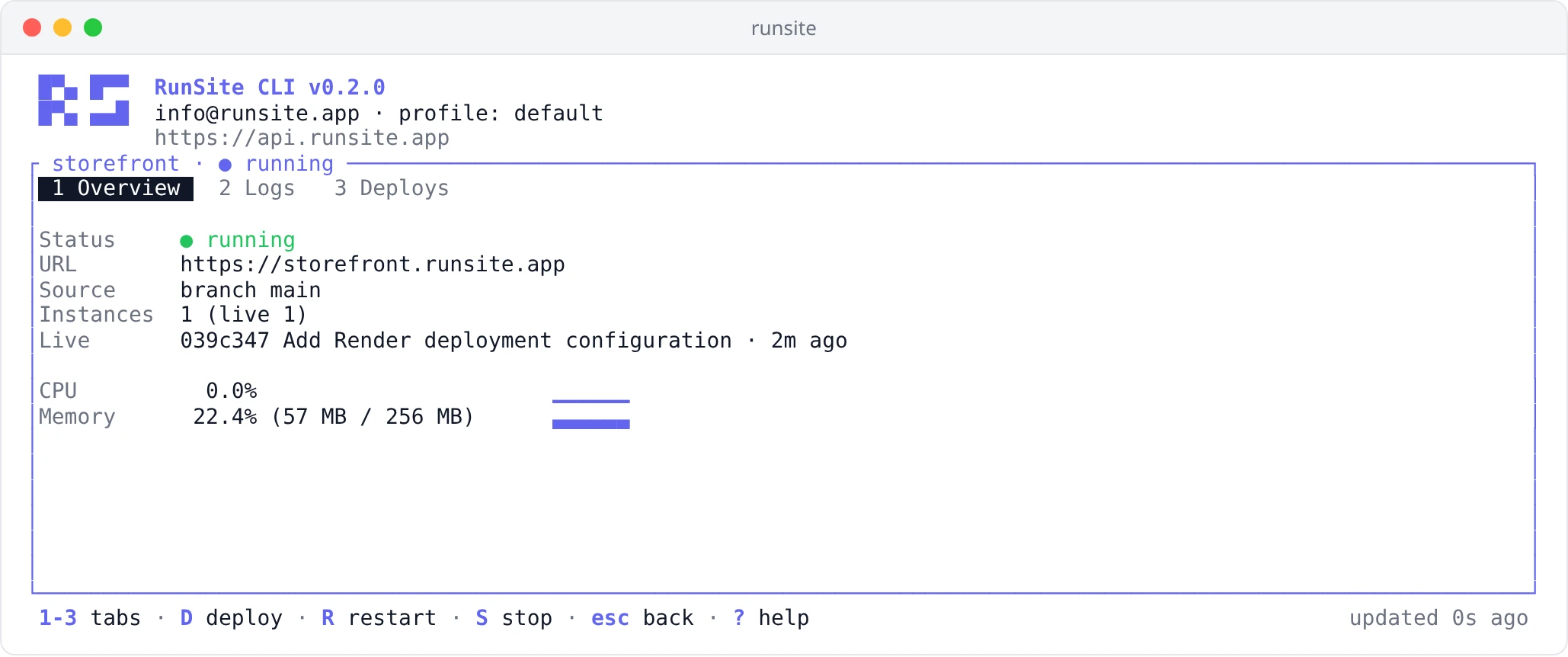
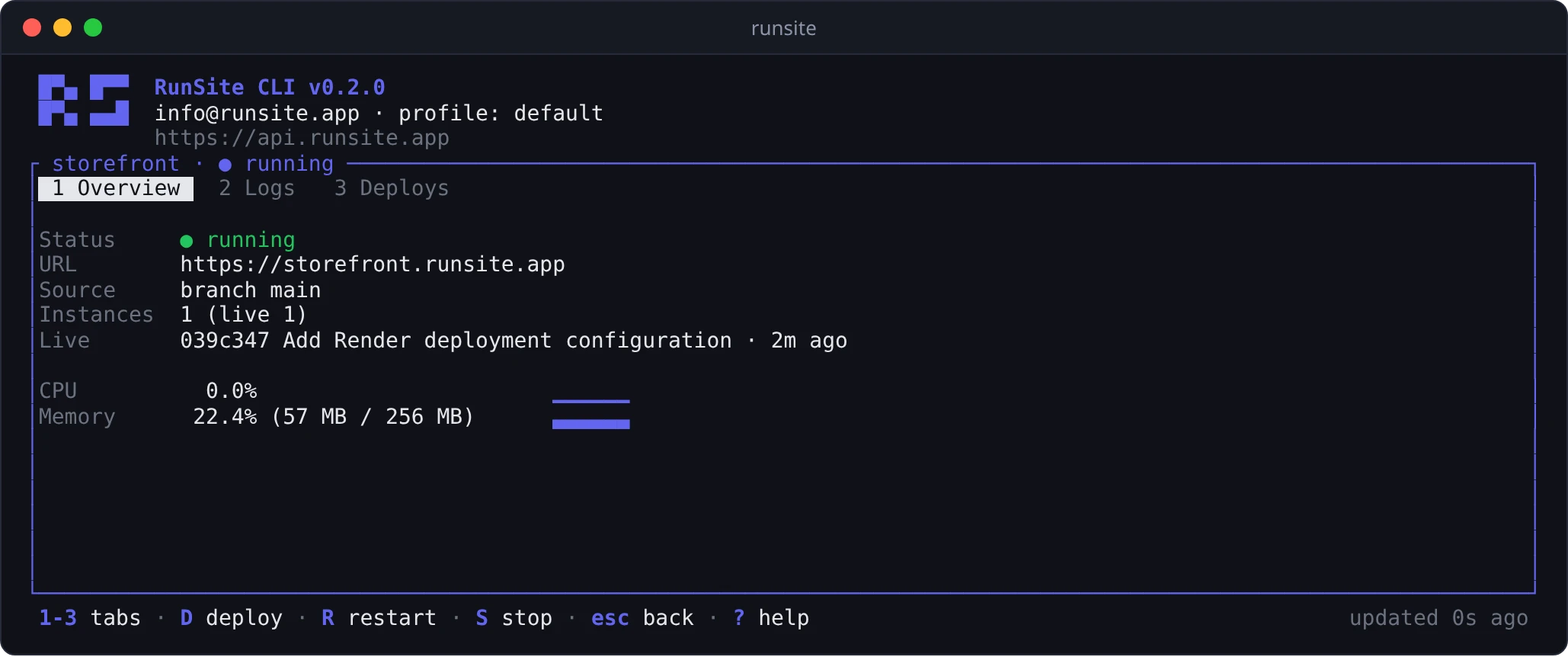
Section titled “Overview”Status, public URL, the branch or image it runs, instance count, the live deployment and any deployment in progress. CPU and memory show the current value next to a sparkline of the last hour.
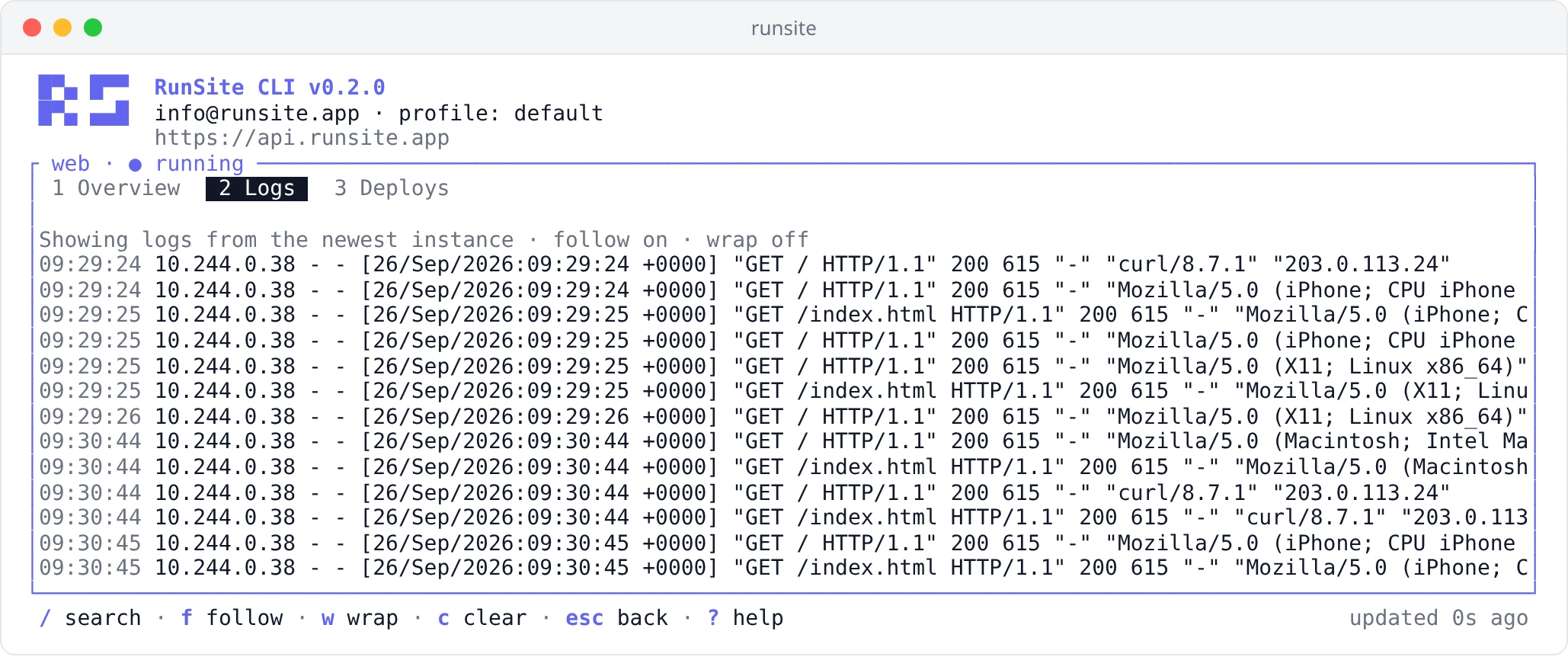
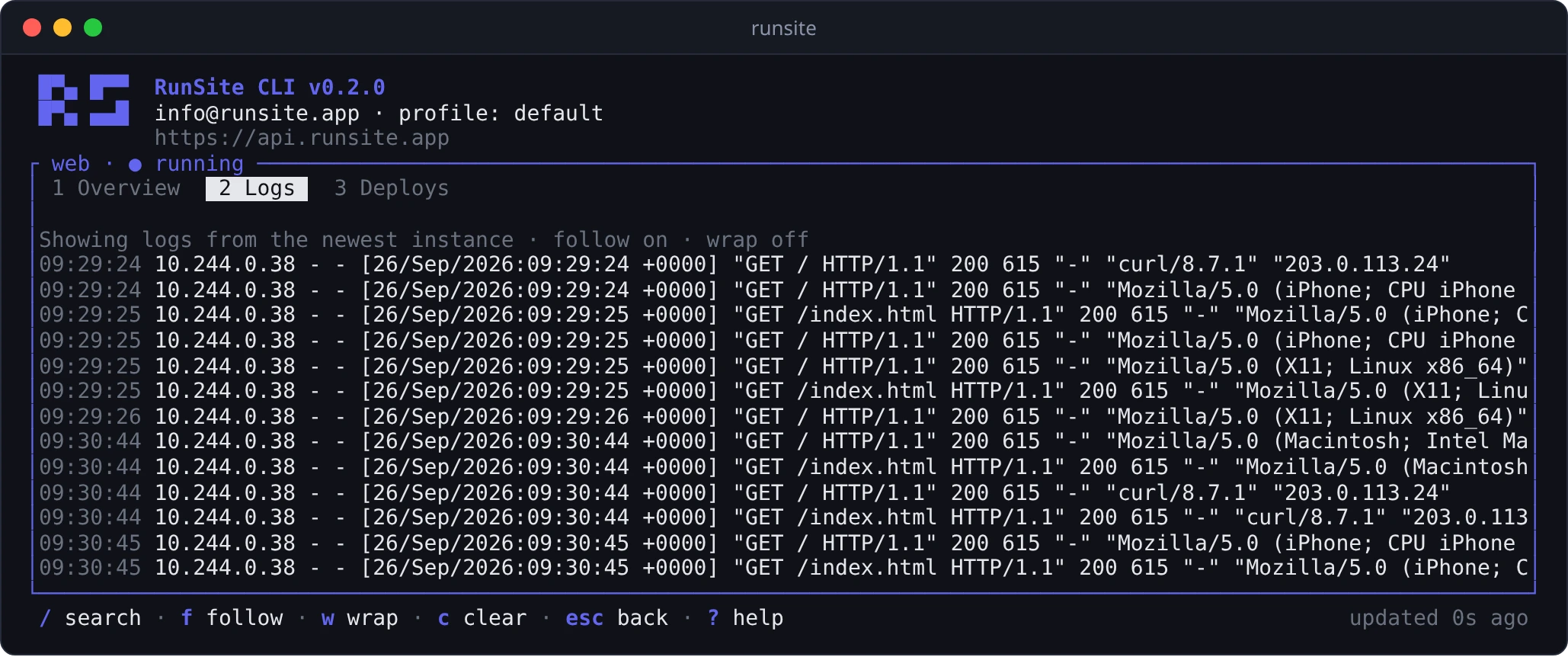
A live tail of the service’s runtime logs, refreshed every two seconds.
| Key | Action |
|---|---|
j k, pgup pgdn | Scroll |
g / G | Jump to the top / to the bottom and follow |
f | Turn following on or off |
w | Turn line wrapping on or off |
← → | Scroll sideways while wrapping is off |
/, n N | Search, next match, previous match |
c | Clear the view |
Scrolling up stops following; G or f turns it back on. With several
instances, the tab shows logs from the newest one.
Deploys
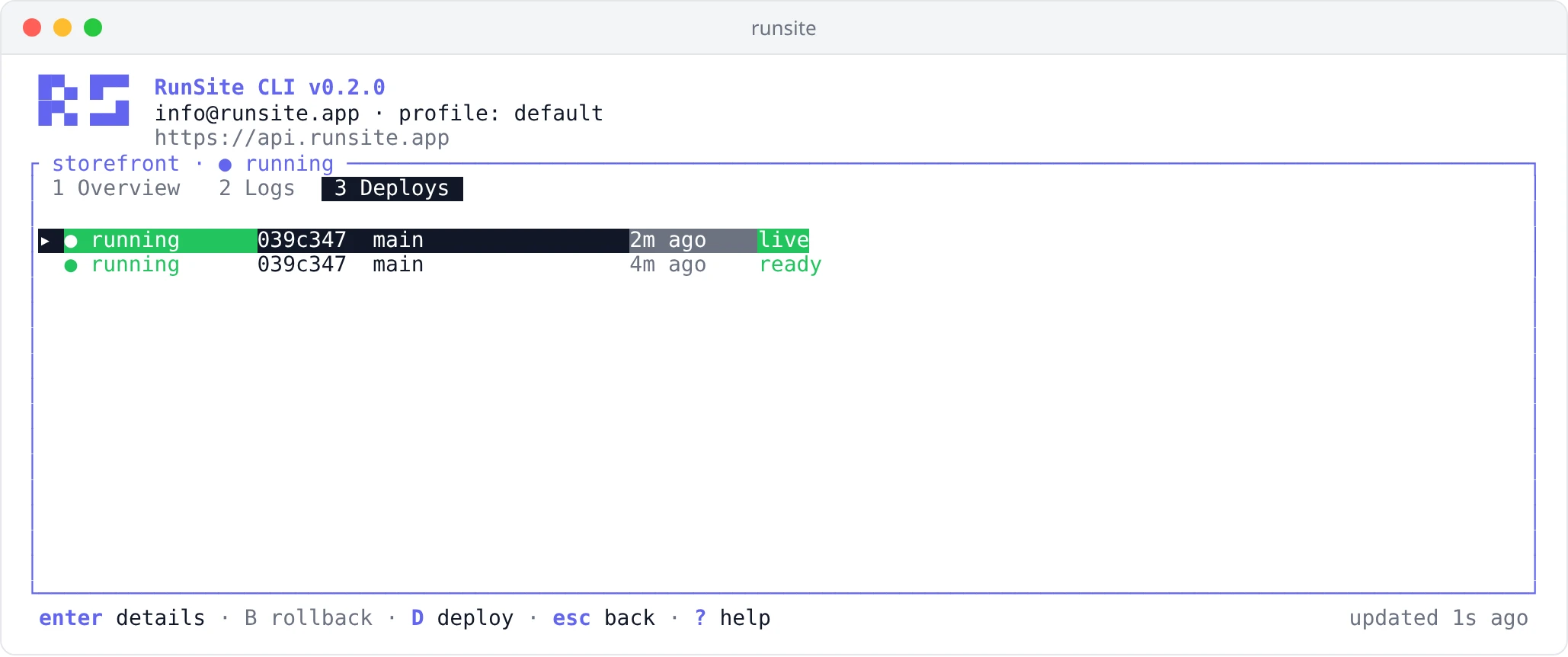
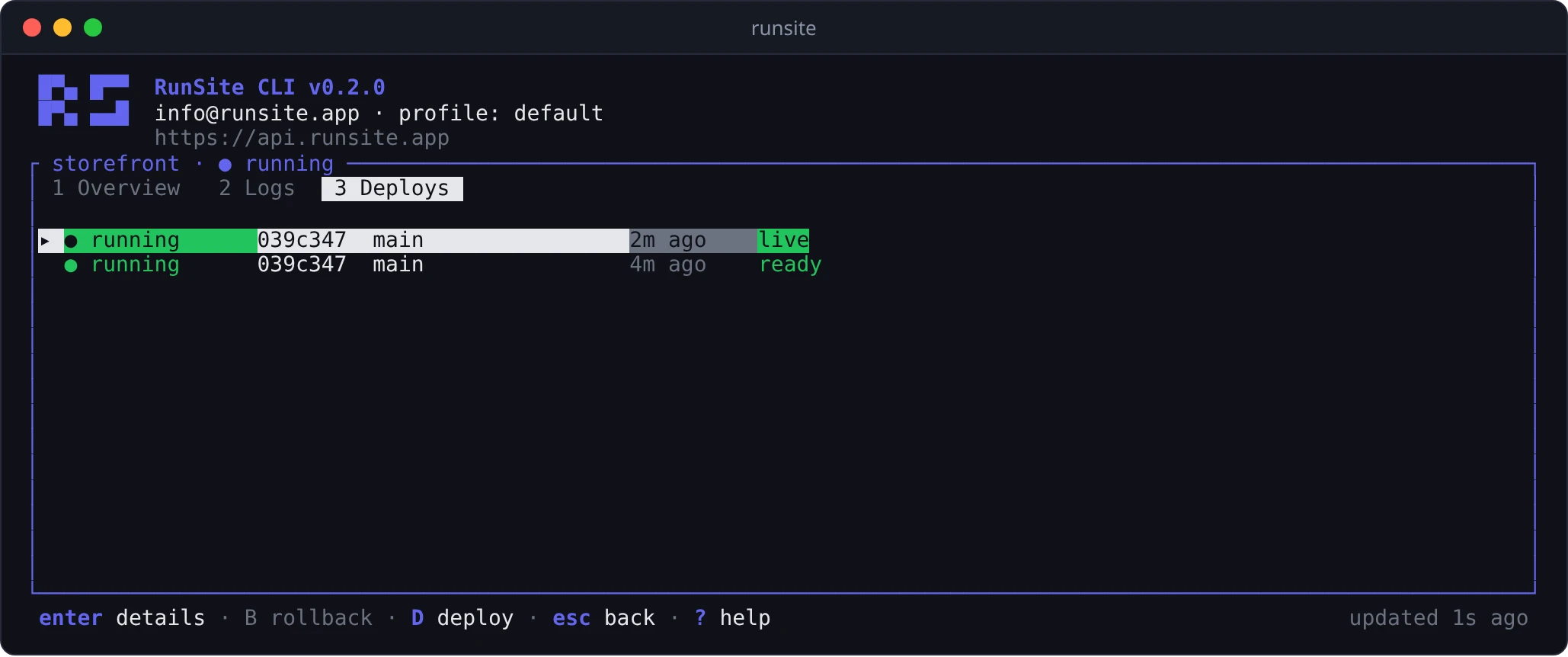
Section titled “Deploys”The last ten deployments with status, commit, branch and age. The live one is
marked live.
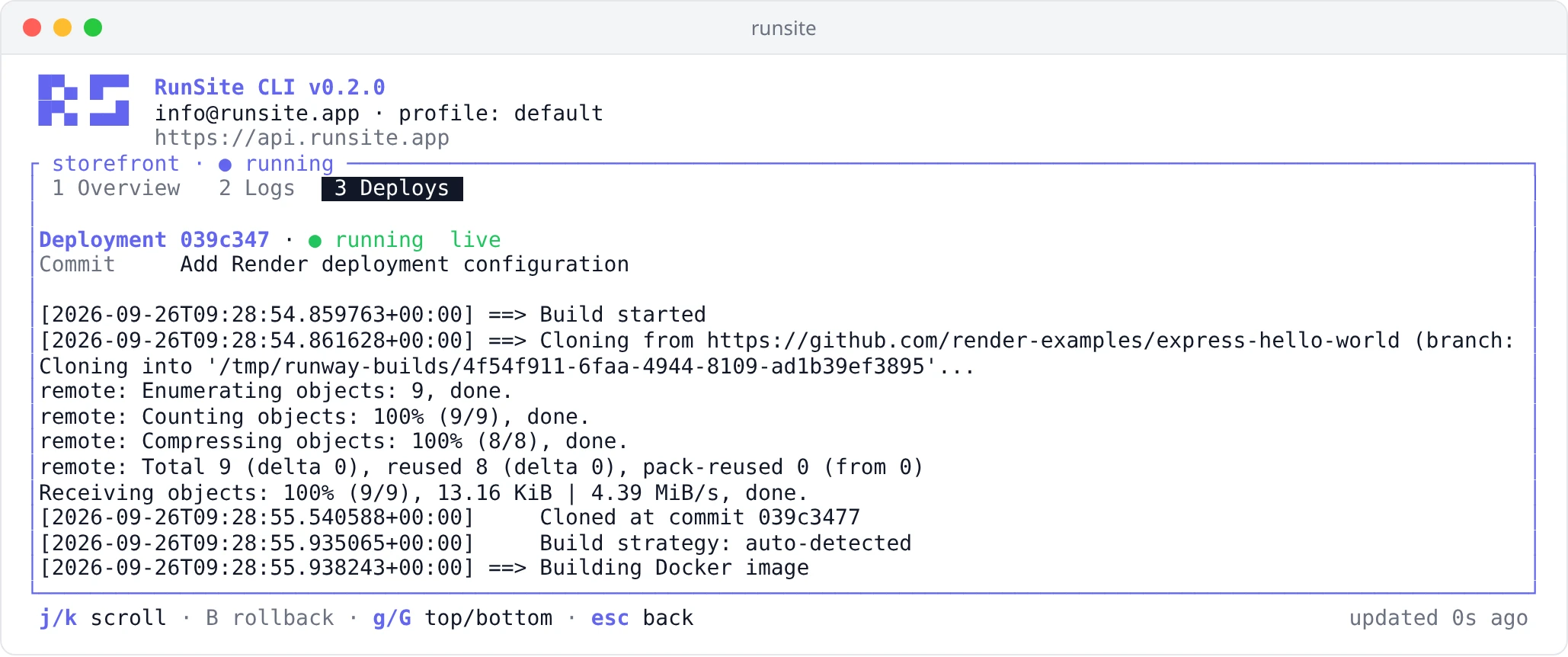
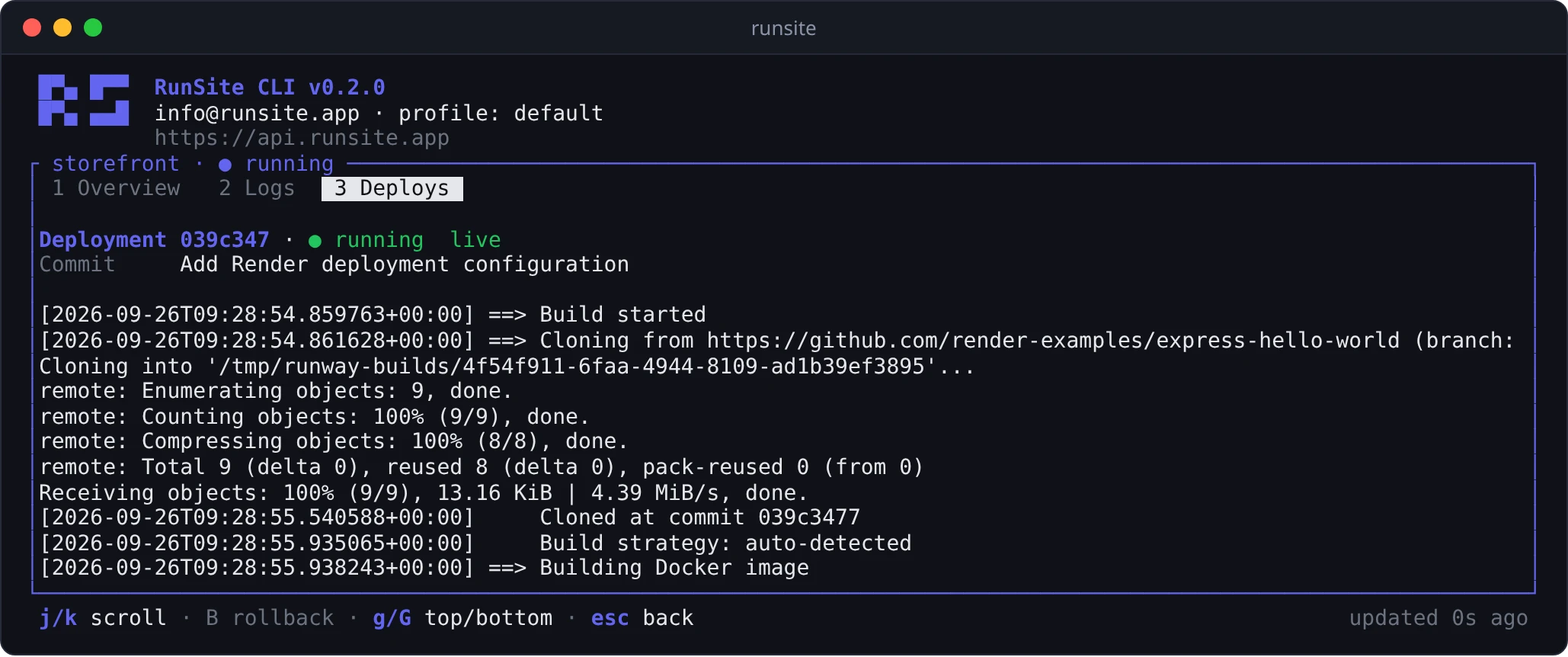
enter opens a deployment with its commit message, error message and full
build log. Scroll the log with j k, pgup pgdn and g G.
Deploy, restart, stop and roll back
Section titled “Deploy, restart, stop and roll back”Keys that change something on the server are always uppercase, and each one
asks you to confirm first. Only y confirms; n, esc and enter cancel.
| Key | Where | Action |
|---|---|---|
D | Dashboard, service screen | Build the latest commit and release it |
R | Dashboard, service screen | Restart the service without rebuilding |
S | Dashboard, service or database screen | Start or stop |
B | Deploys tab, deployment screen | Roll back to the selected deployment |
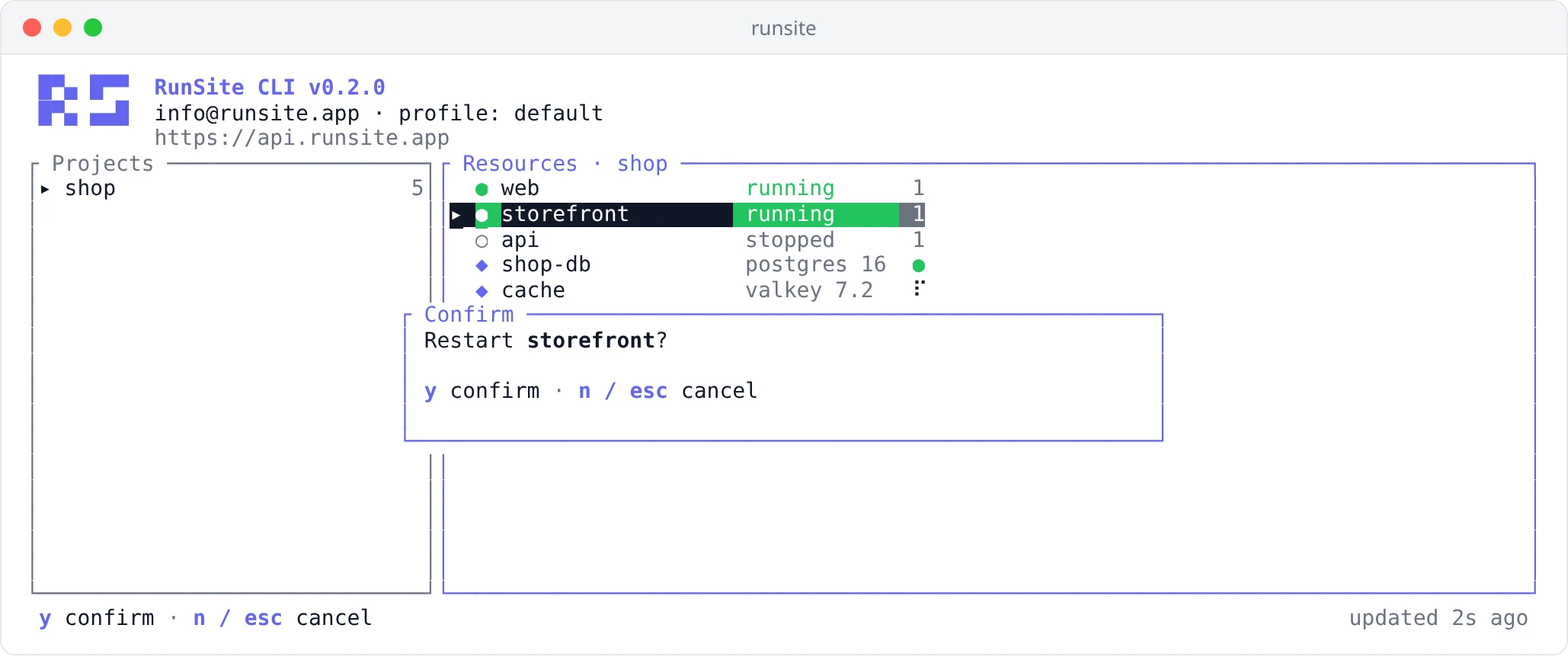
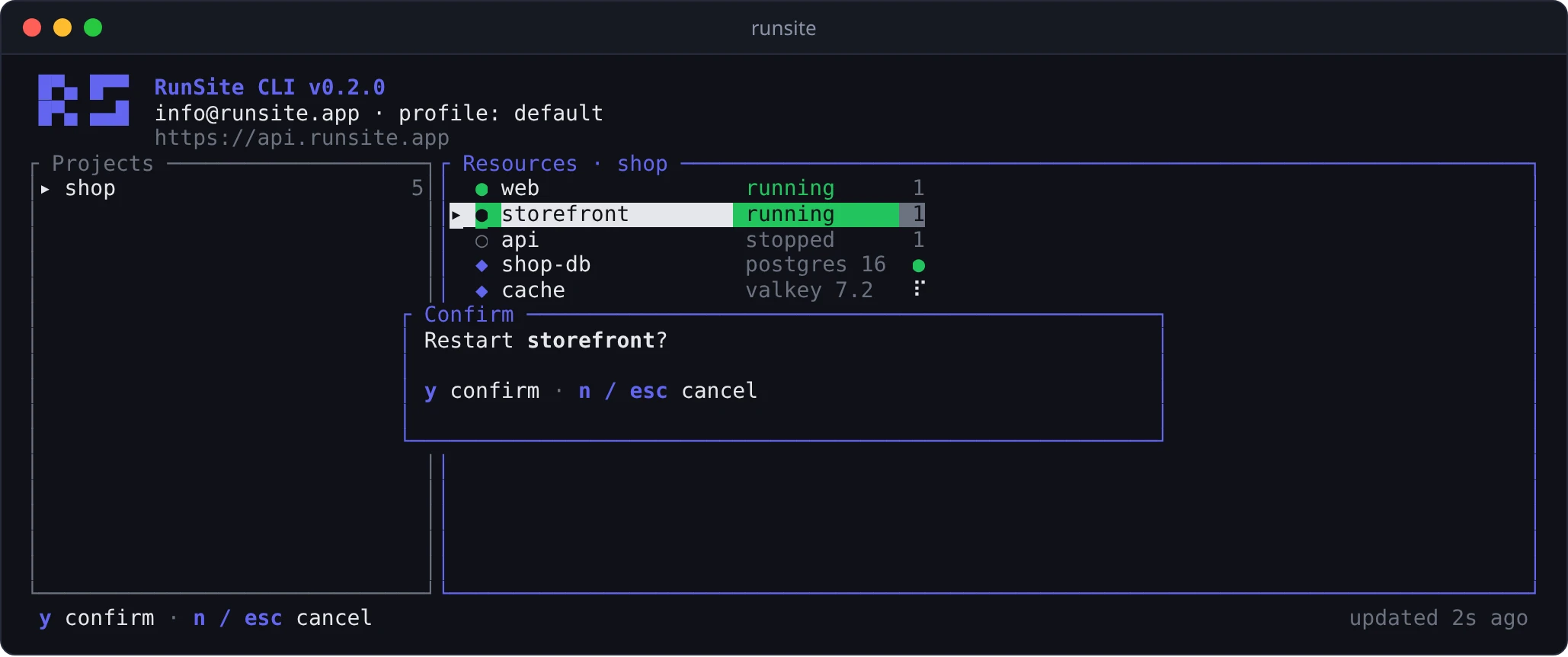
A key that cannot be used right now is greyed out in the bottom line, and pressing it tells you why. Typical reasons:
- The key has the
readscope. Actions need awritekey. - A deployment is already in progress, so
D,RandBwait until it finishes. Bworks only on an earlier deployment that finished successfully, not on the live one.- The service is blocked or being deleted.
Deploys are limited to 5 per minute per key; other actions to 30 per minute.
Database screen
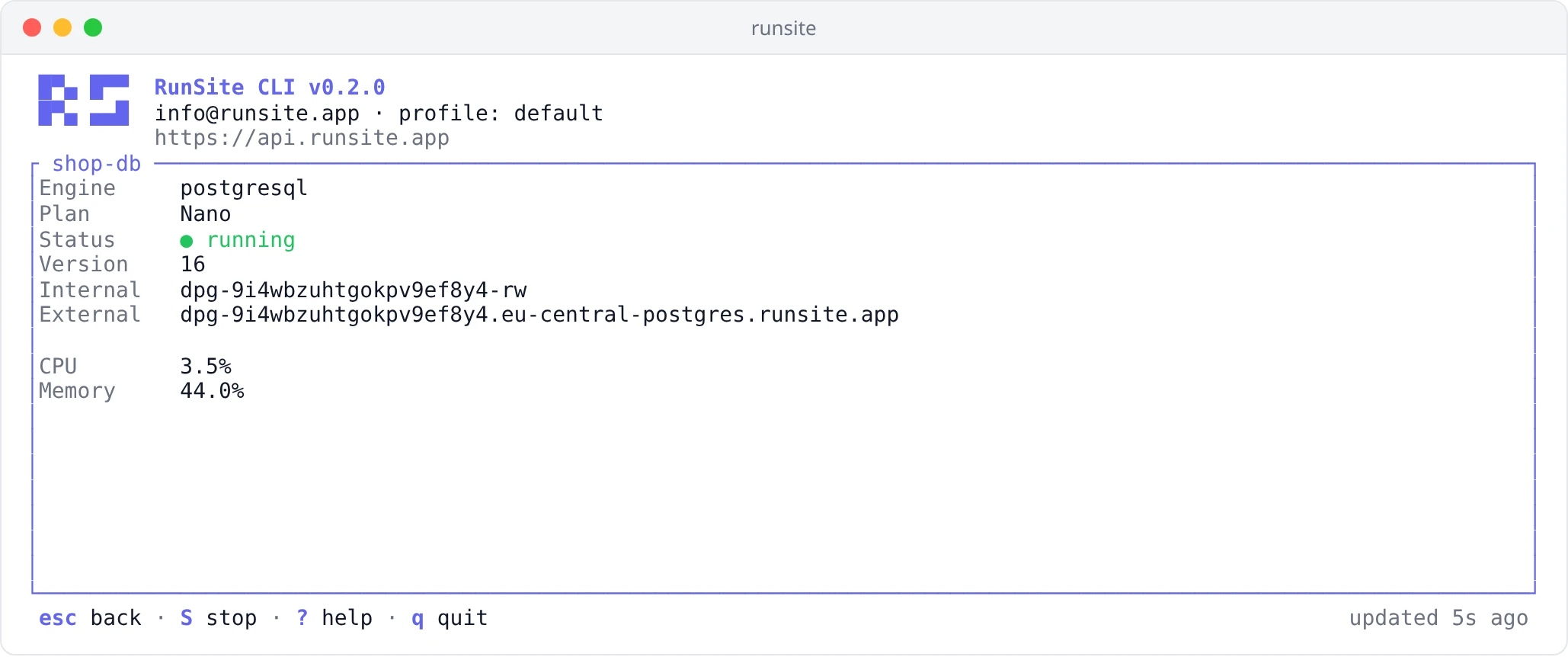
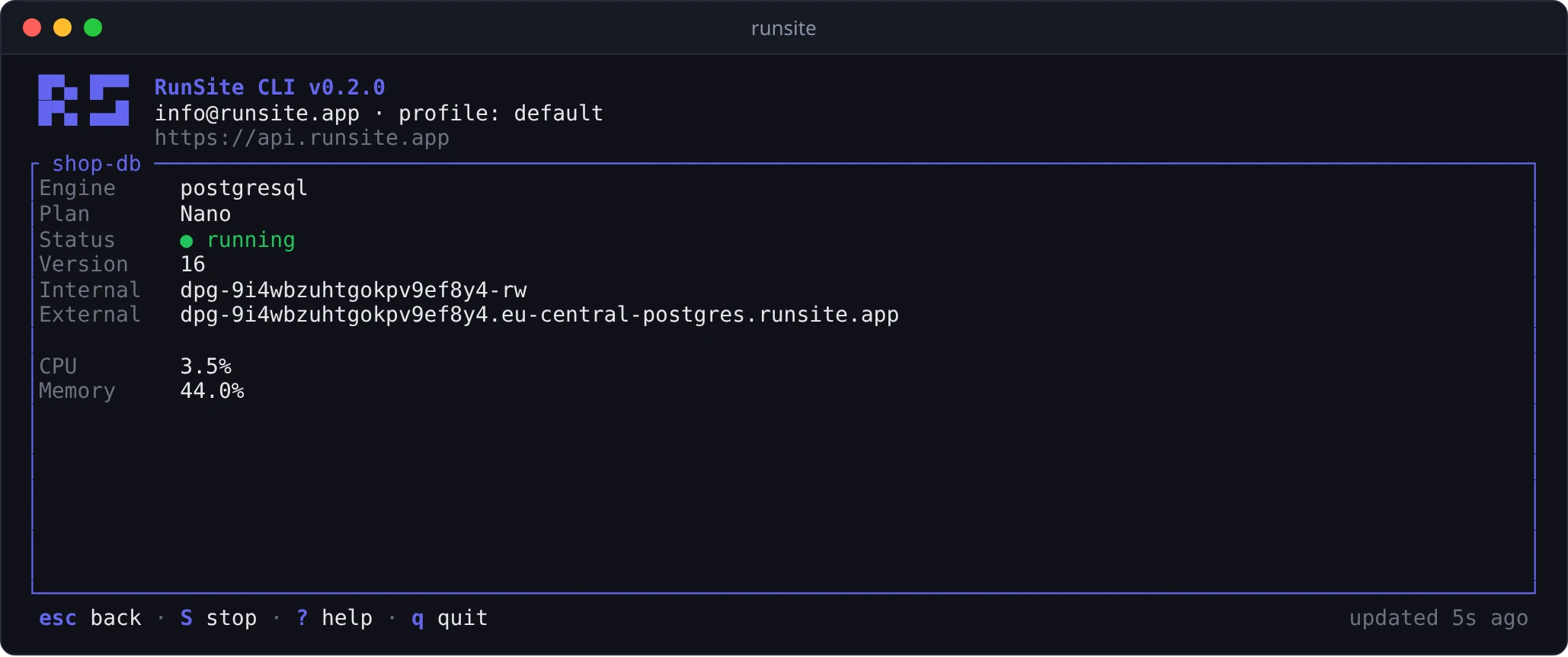
Section titled “Database screen”Opening a PostgreSQL or Redis database shows its engine, plan, status, version
and the internal and external hostnames. PostgreSQL databases also show CPU and
memory. S starts or stops the database. Passwords are never shown; connect a
database to a service with runsite db connect.
Profiles and login
Section titled “Profiles and login”P lists the profiles in your config and switches to another one for this
session. The profile saved as current does not change. A profile without a
key opens the login screen, where you sign in with email and password or paste
an API key.
When RUNSITE_API_TOKEN is set, the header shows env: RUNSITE_API_TOKEN
instead of a profile name, and P is off because the variable overrides every
profile.
Terminal size and colors
Section titled “Terminal size and colors”- The UI needs at least 60×15 characters. Below 100 columns the dashboard shows one pane at a time; below 20 rows the header shrinks to one line.
- Colors are truecolor when
COLORTERMistruecoloror24bit, and 256 colors otherwise.NO_COLOR=1turns them off. RUNSITE_ASCII=1replaces the logo, borders and icons with plain ASCII, which helps on the Linux console and in old Windows terminals.
See also
Section titled “See also”- Runsite CLI — install, log in and every command
- API keys — scopes decide which actions the UI allows